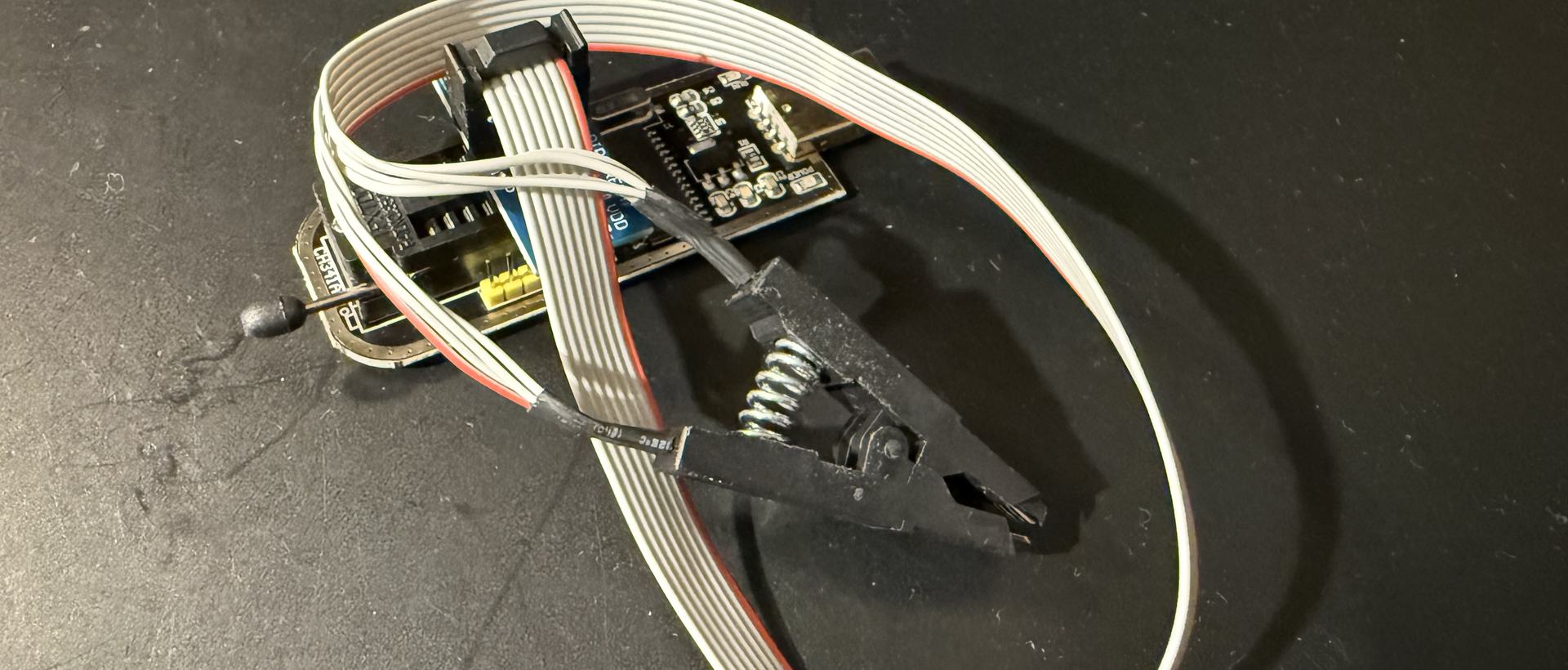
by Łukasz Jakóbiec
Debricking a Formlabs Form 3+, Part 3: The Short Version, With a Clip
Parts 1 and 2 were the long story. This is the short guide: no serial console and no soldering, just a cheap SPI programmer or a Raspberry Pi clipped onto the boot flash, and one value changed to get a Form 3+ booting again.
In Part 1 and Part 2 I took a dead Form 3+ apart electrically: serial console, boot logs, a network boot, and a lot of reading. This part is the short version. Once you know what is wrong, the fix needs much less than that.
Here is the part I want to make clear up front: you do not need a serial connection. You do not need to solder anything, and you do not need a TFTP server. The only thing you need to reach is the QSPI boot flash on the SOM, the small computer module inside the printer. Everything in this guide happens on that one 8-pin chip.
The Form 3+ keeps two copies of its operating system on the eMMC. A single value in the boot flash says which one to start. On my printer one copy had gone bad and the other was fine, so flipping that value to the other copy was enough to get the printer going again. If your printer stopped booting on its own, without a failed update or a power cut to explain it, that is the first thing I would try. Below are the steps, with every command I used.
If you can take the printer apart and put it back together, you can do this.
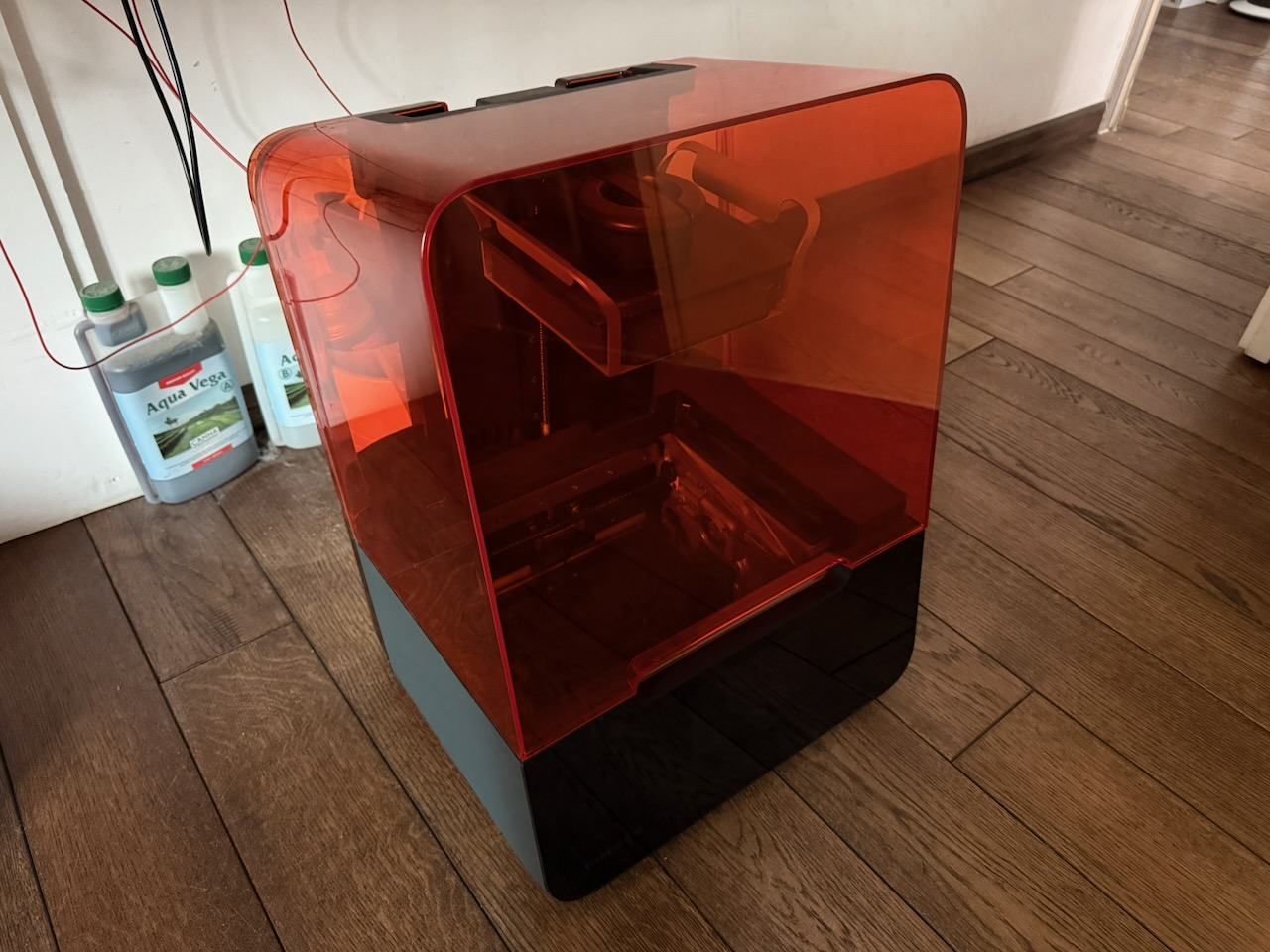
What you need
- A programmer, one of:
- a CH341A USB programmer, the cheap black or blue one sold everywhere, or
- a Raspberry Pi (any model with the 40-pin header) and a few jumper wires.
- A SOIC-8 test clip with a ribbon cable. These are often sold together with the CH341A.
- flashrom on the computer the programmer is plugged into (
brew install flashromon a Mac,sudo apt install flashromon Linux or the Pi). - Python 3, for the small script below.
- A multimeter, to check the programmer's voltage.
- The tools to open the printer and reach the SOM.
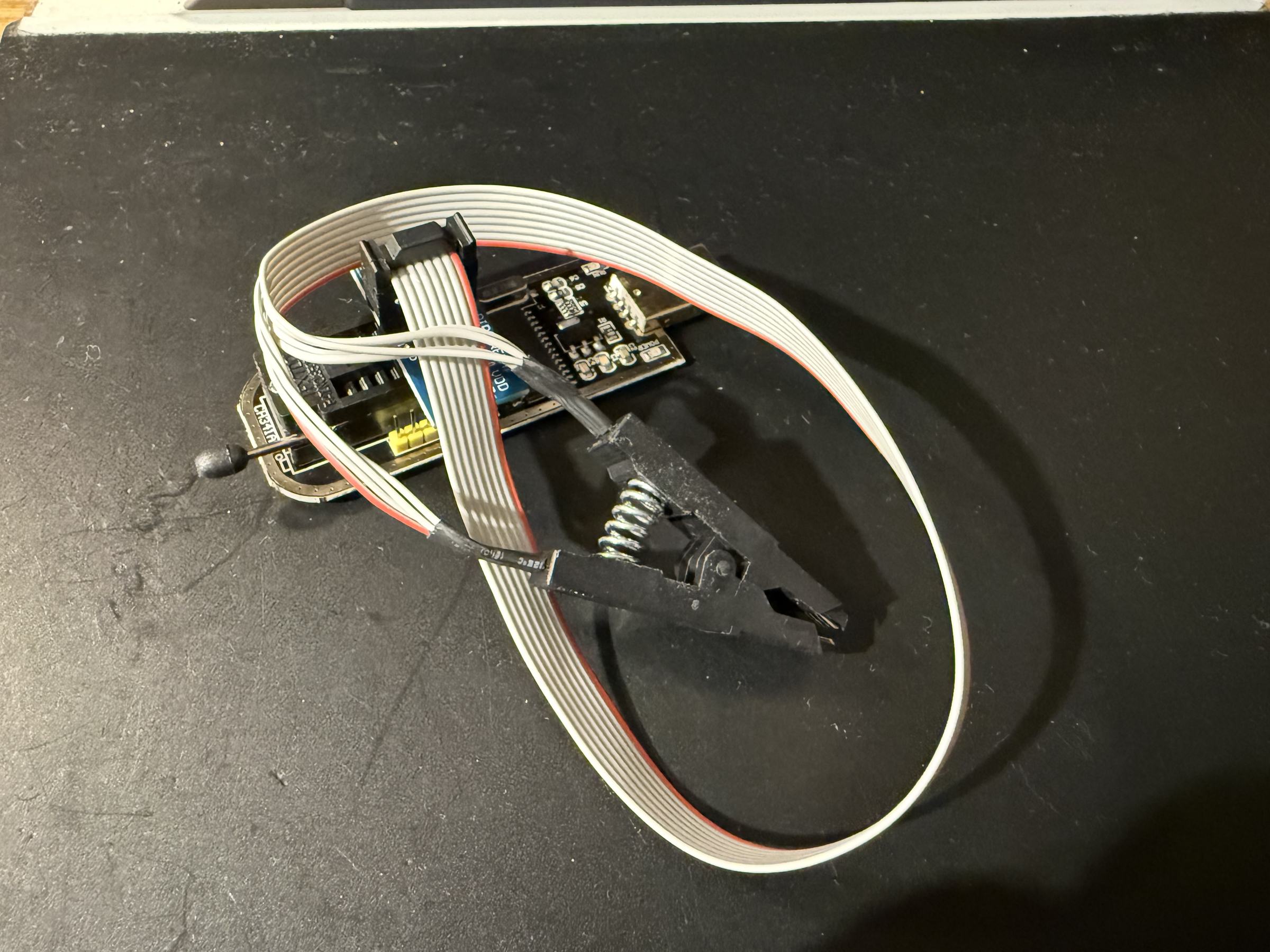
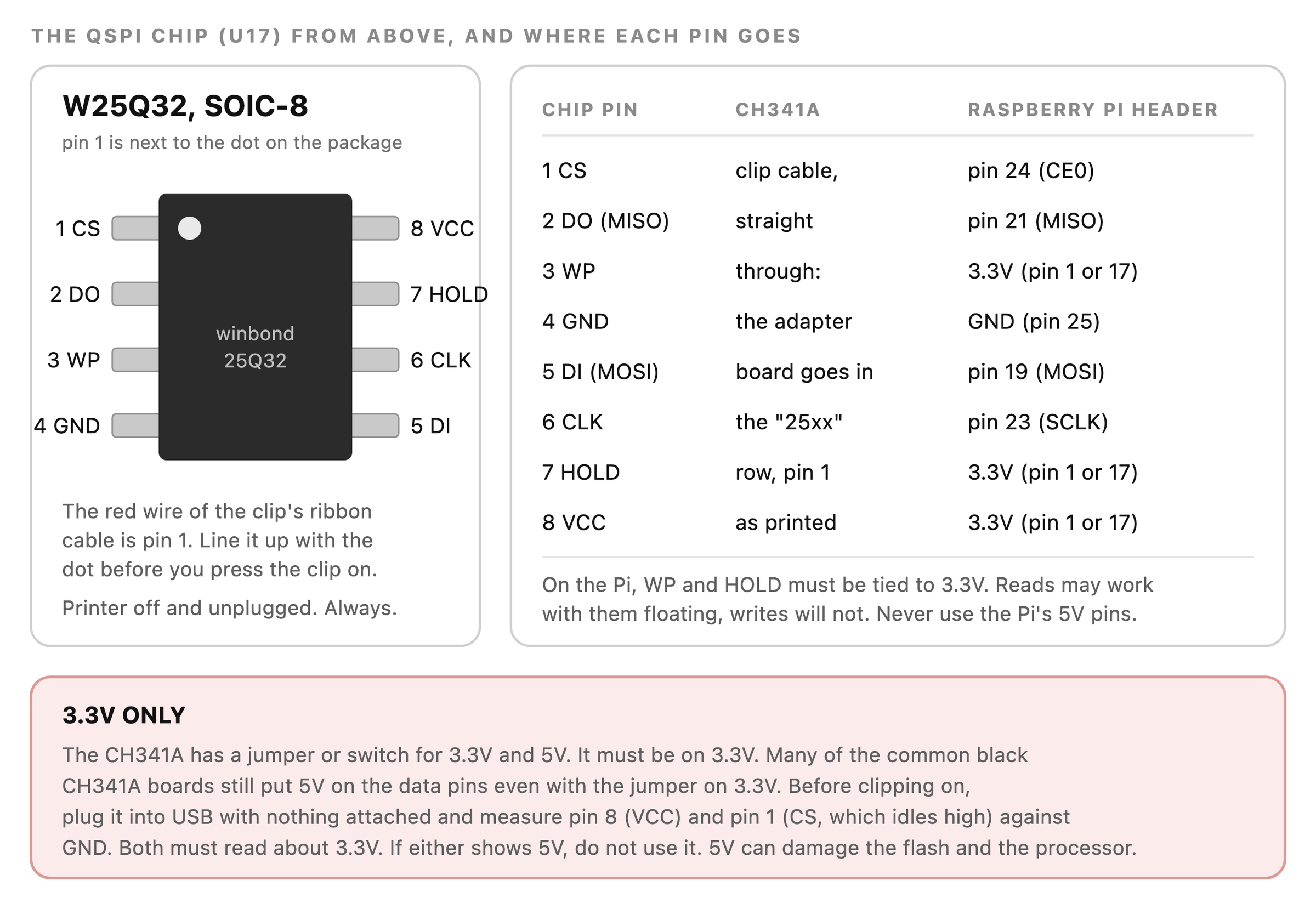
Warning: 3.3V, never 5V. The flash chip and the processor on the SOM run at 3.3V. The CH341A has a jumper or switch that selects 3.3V or 5V, and it must be set to 3.3V. Be aware that many of the common black CH341A boards still put 5V on the data lines even with the jumper on 3.3V. Before you connect it to the printer, plug the programmer into USB with nothing attached and measure pin 8 (VCC) and pin 1 (CS) of its socket against GND. Both must read about 3.3V. If either reads 5V, do not use that programmer on the printer. 5V can damage the flash chip and the processor, and that is a much bigger repair than the one you started.
A Raspberry Pi does not have this problem, because its GPIO pins are 3.3V. Just never connect anything to the Pi's 5V pins.
Please do not solder wires to the chip
In Part 1 I took the chip off the board and soldered thin wires to its legs (a "dead bug"), and I also lifted one of its pins. It worked, but it was slow and risky, and you do not need to do it. A clip on the chip, in place on the board, is enough.
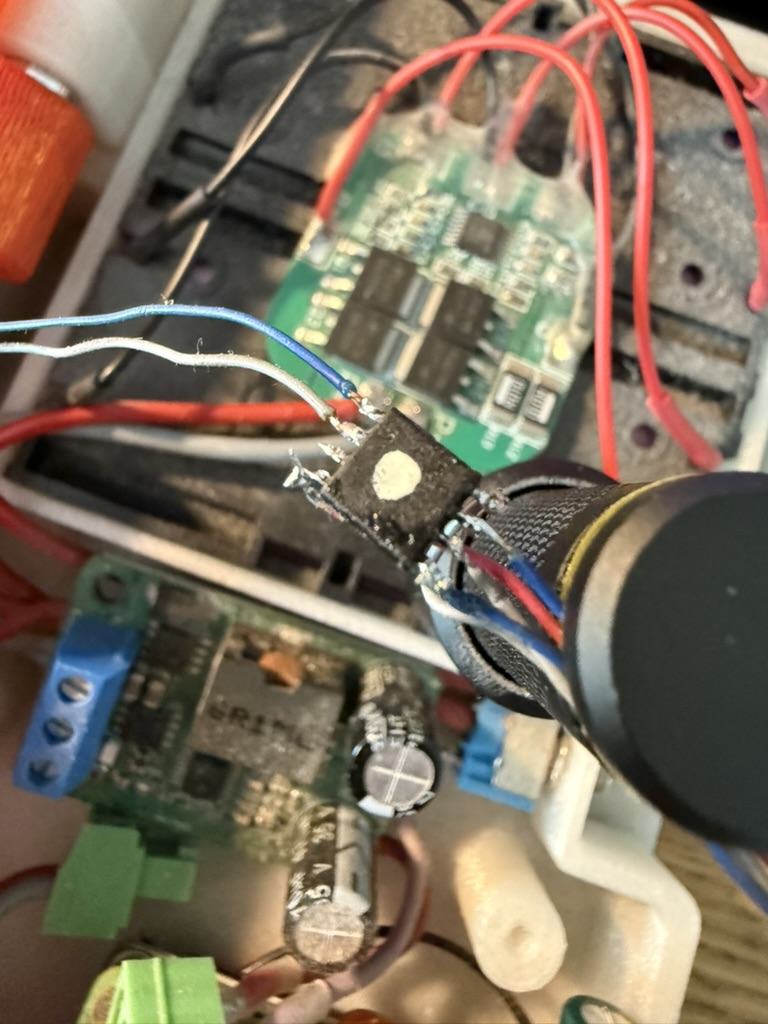
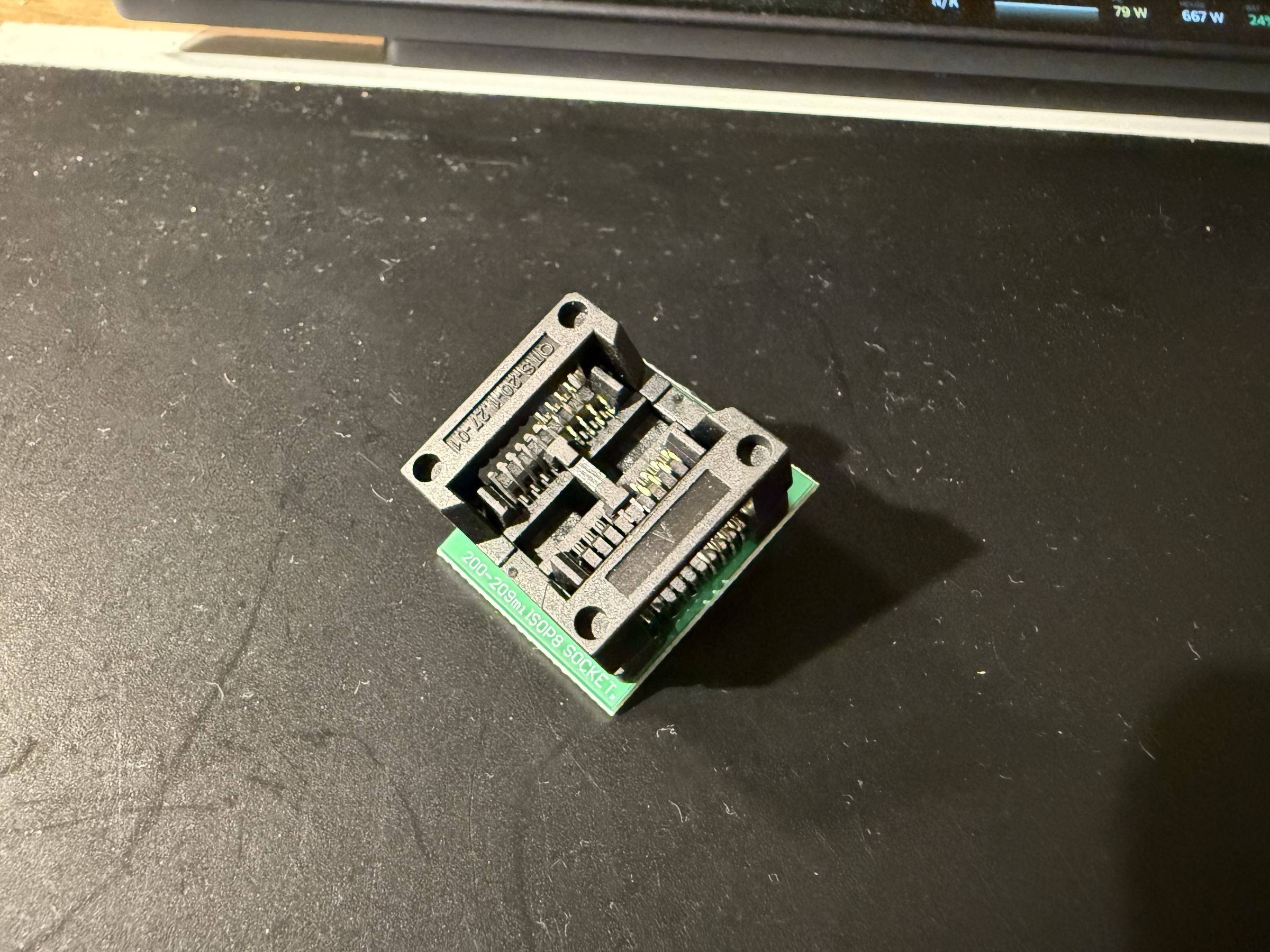
If you ever do need to take the chip off the board, put it in a SOIC-8 socket like the one below and program it there. The socket goes into the CH341A the same way the clip's adapter does. Do not solder wires to it.
How the printer decides what to boot
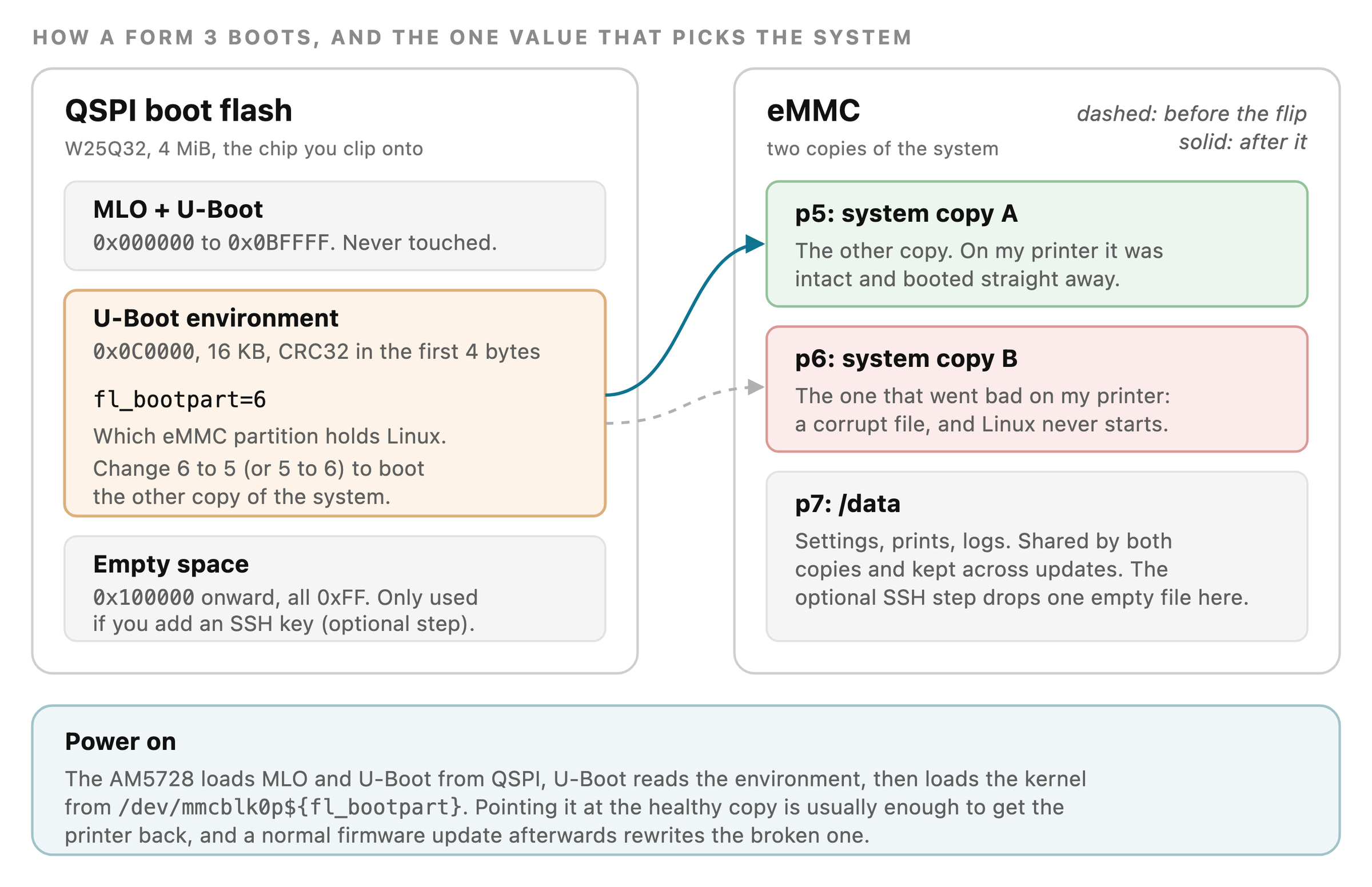
When the printer powers on, the processor loads its first-stage loader (MLO) and U-Boot from the QSPI flash. U-Boot reads a small block of settings, called the environment, which is also in the QSPI flash. One of those settings is fl_bootpart. Its value is 5 or 6, and it tells U-Boot which eMMC partition to load Linux from.
Partitions 5 and 6 are the two copies of the system. A firmware update writes the new version into the copy that is not running, and then switches fl_bootpart over to it. If the copy in use gets corrupted, the printer keeps trying to boot it and never comes up, even though the other copy may be perfectly fine.
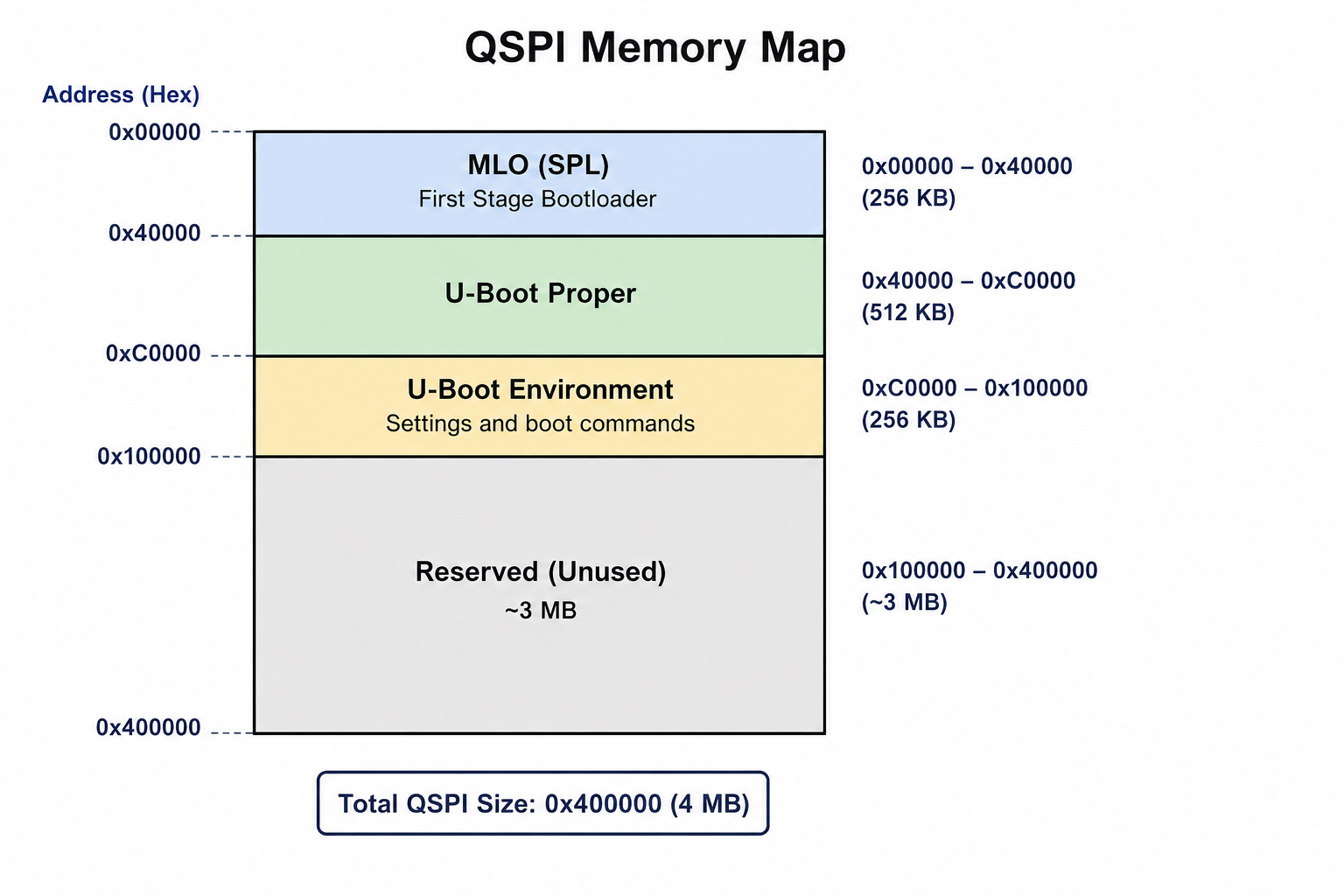
The environment starts at 0xC0000 and is 16 KB long. Its first four bytes are a CRC32 checksum of the rest. If you edit a value and do not update the checksum, U-Boot ignores the whole environment, so the script below always recalculates it.
Getting to the chip
Unplug the printer from the wall first. Not just switched off: unplugged.
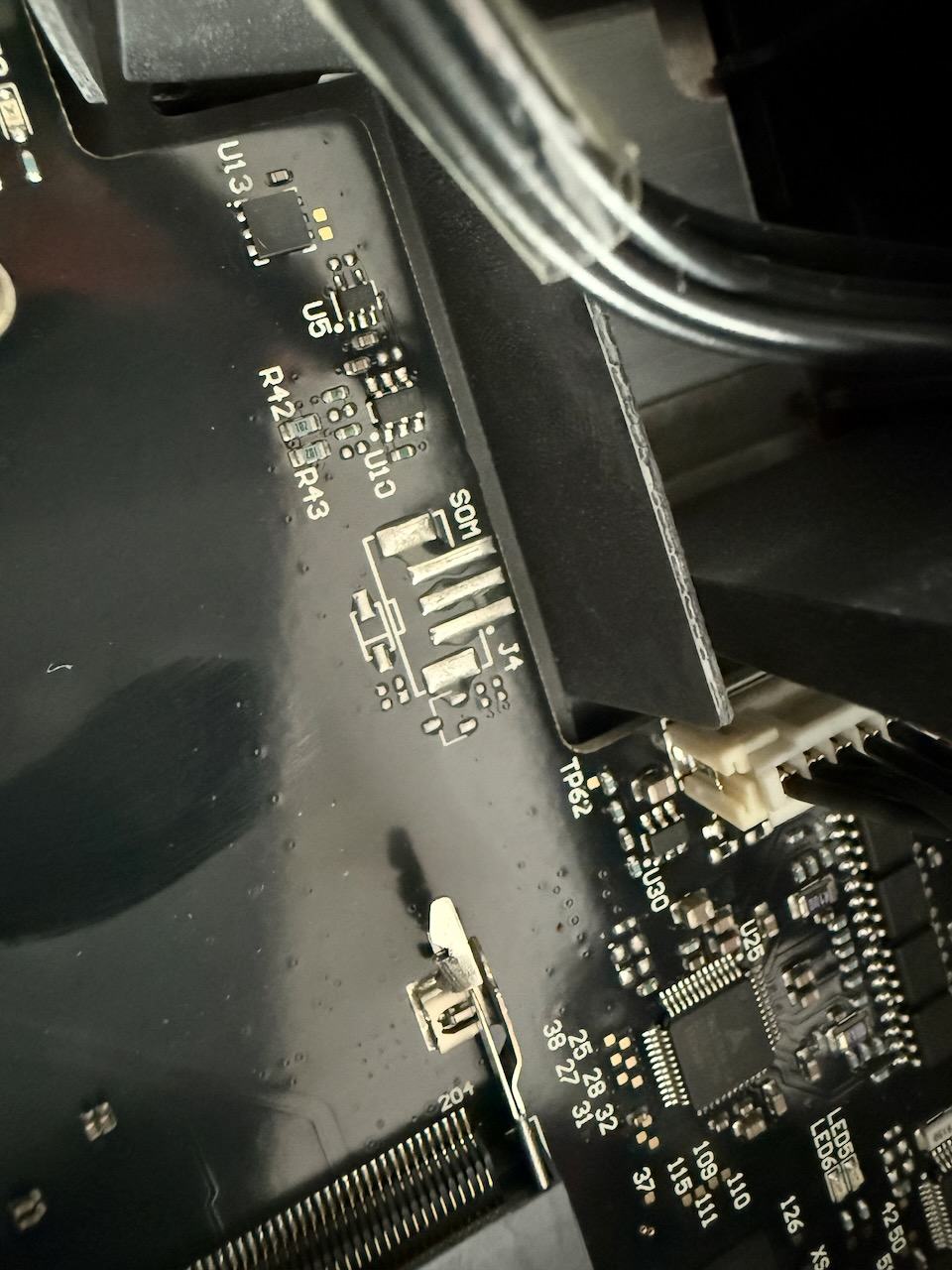
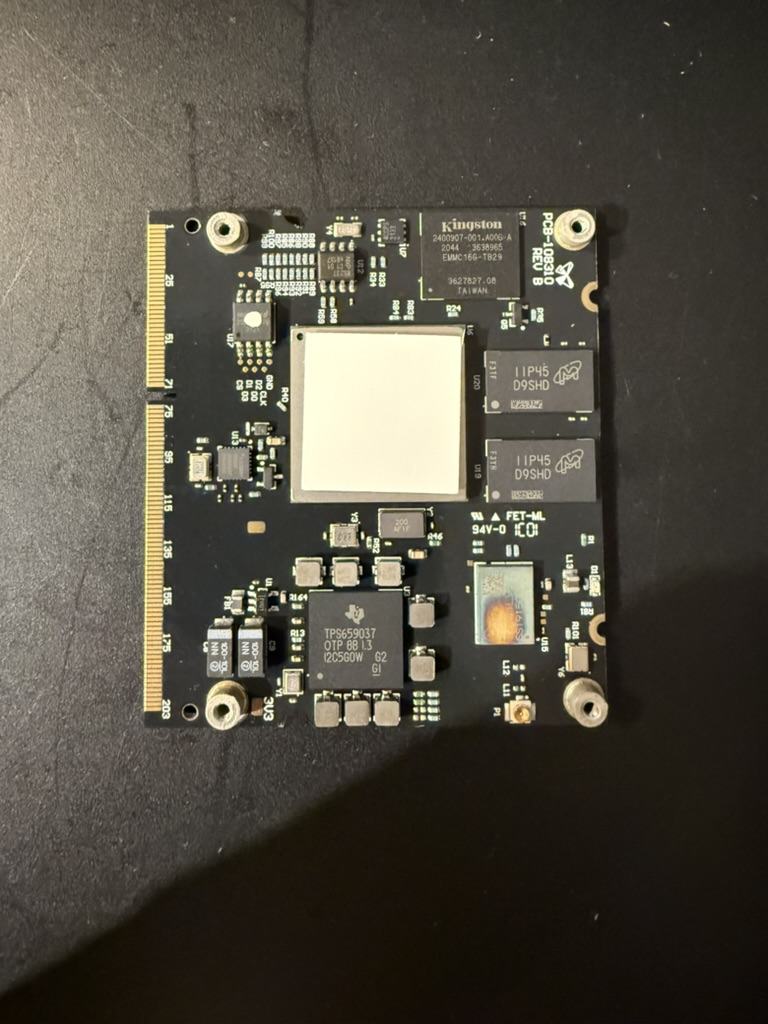
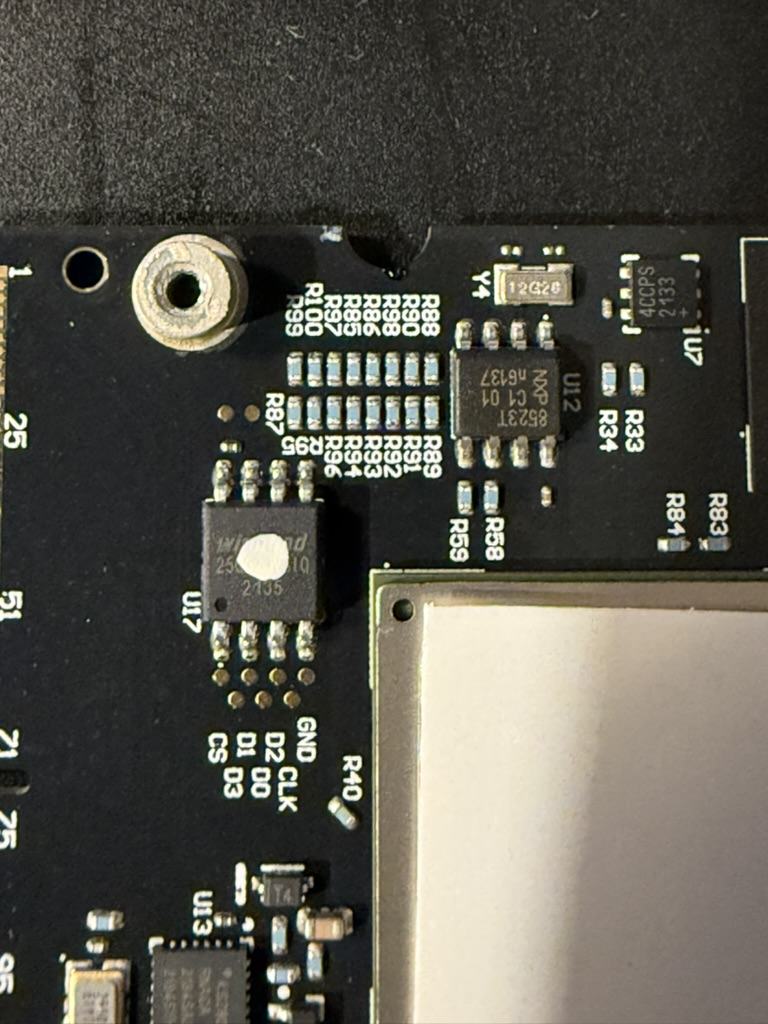
The SOM is the small board that plugs into the printer's main board, in the slot shown below. On the SOM, the QSPI flash is marked U17. It is a Winbond 25Q32 in an 8-pin SOIC package, near the edge connector, with a row of test pads labelled CS, D0 to D3, CLK and GND underneath it. Pin 1 is the corner with the small round dot on the package.
The SOM can stay in the printer. With the printer unplugged, the clip goes straight onto U17.
Wiring
With a CH341A there is nothing to wire. The clip's ribbon cable ends in a small adapter board. That adapter goes into the CH341A's socket in the row marked "25xx", with pin 1 at the end the board marks as pin 1. The red wire in the ribbon is pin 1, and it goes to the corner of U17 with the dot.
With a Raspberry Pi, connect the clip to the header as in the table below. Tie WP (pin 3) and HOLD (pin 7) to 3.3V as well. Without that, reads may work but writes will not.
On the Pi, turn on SPI and install flashrom once:
sudo raspi-config nonint do_spi 0      # enable SPI, then reboot the Pi
sudo apt install -y flashrom
ls /dev/spidev0.0                      # should exist after the reboot
Step by step
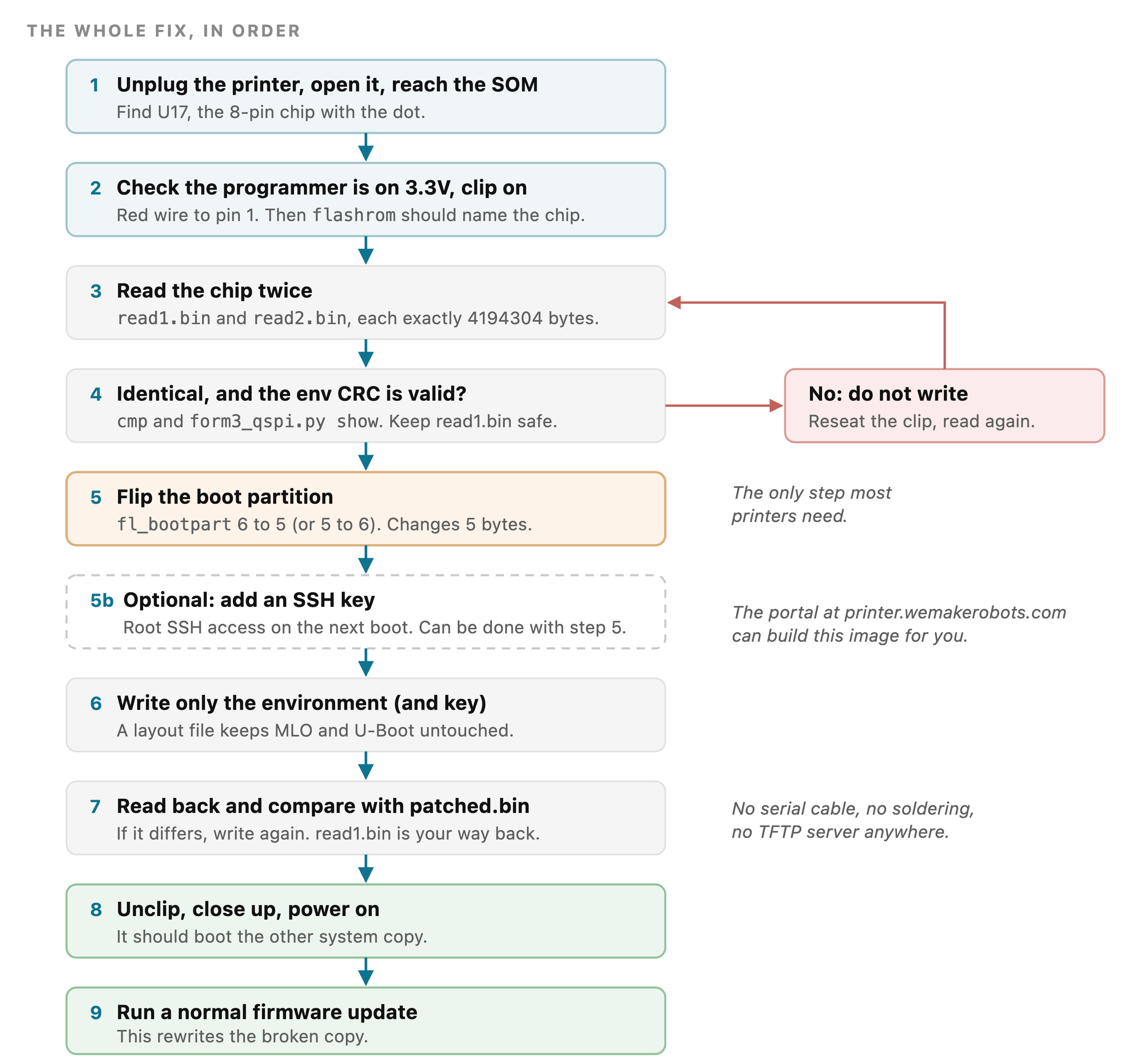
This is the whole fix on one page. The commands for each step follow.
To keep the commands short, set the programmer once. Use the first line for a CH341A, or the commented one for a Raspberry Pi (and run the flashrom commands with sudo on the Pi). Everything else is the same for both.
P="-p ch341a_spi -c W25Q32FV"
# Raspberry Pi instead:
# P="-p linux_spi:dev=/dev/spidev0.0,spispeed=1000 -c W25Q32FV"
1. Check that the programmer can see the chip
With the clip on, flashrom should report a Winbond W25Q32 chip. Several W25Q32 variants share the same ID, which is why the commands name it with -c W25Q32FV. If flashrom says it found no chip, see If something goes wrong below.
flashrom -p ch341a_spi2. Read the chip twice, and keep the copy
Read the whole chip twice and compare the two files. If they are not identical, the clip is not making good contact, and nothing you write will be reliable either. Keep read1.bin somewhere safe. It is your way back.
flashrom $P -r read1.bin
flashrom $P -r read2.bin
ls -l read1.bin read2.bin              # both must be 4194304 bytes
cmp read1.bin read2.bin && echo "identical"
3. Save the script
Save this as form3_qspi.py. It uses only the Python standard library. It checks the environment's checksum before it does anything, and it only ever changes the environment, plus the key area if you use the optional SSH step.
#!/usr/bin/env python3
"""Read and patch the U-Boot environment in a Form 3/3+ QSPI dump.

  python3 form3_qspi.py show  dump.bin
  python3 form3_qspi.py flip  dump.bin patched.bin
  python3 form3_qspi.py ssh   dump.bin patched.bin ~/.ssh/form3.pub
"""
import struct, sys, zlib

SIZE, ENV, ENV_SIZE, KEY = 0x400000, 0xC0000, 0x4000, 0x100000


def read_env(img):
    region = img[ENV:ENV + ENV_SIZE]
    (crc,) = struct.unpack("<I", region[:4])
    if crc != zlib.crc32(region[4:]):
        sys.exit("env CRC does not match: bad read or not a Form 3 dump. Do not write.")
    pairs, body = [], region[4:]
    for entry in body.split(b"\x00"):
        if not entry:
            break
        k, _, v = entry.decode("ascii").partition("=")
        pairs.append([k, v])
    return pairs


def write_env(img, pairs):
    body = b"".join(f"{k}={v}".encode("ascii") + b"\x00" for k, v in pairs) + b"\x00"
    body = body.ljust(ENV_SIZE - 4, b"\x00")
    if len(body) != ENV_SIZE - 4:
        sys.exit("env too large")
    img[ENV:ENV + ENV_SIZE] = struct.pack("<I", zlib.crc32(body)) + body


def setvar(pairs, key, value):
    for p in pairs:
        if p[0] == key:
            p[1] = value
            return
    pairs.append([key, value])


ANCHOR = {
    "key_off": "0x100000",
    "key_addr": "0x88080000",
    "inject_key": "echo ANCHOR: injecting ssh key; mmc dev 1 && mmc rescan && sf probe 0 && "
                  "sf read ${key_addr} ${key_off} ${key_sz} && ext4write mmc 1:${fl_bootpart} "
                  "${key_addr} /home/root/.ssh/authorized_keys ${key_sz} && echo ANCHOR: key injected OK",
    "injectcmd": "run fl_check_flip; setenv mmcpart ${fl_bootpart}; setenv emmcroot "
                 "/dev/mmcblk0p${fl_bootpart}; run inject_key; run enable_ssh; run emmcboot;",
    "testbutton_inject": "if gpio input ${altboot_gpio}; then run injectcmd; "
                         "else run factorynetboot_fl; fi;",
    "enable_ssh": "ext4write mmc 1:7 ${key_addr} /settings/persistent_enable_sshd 0x1 && "
                  "echo ANCHOR: ssh enabled",
}

cmd, src = sys.argv[1], sys.argv[2]
img = bytearray(open(src, "rb").read())
if len(img) != SIZE:
    sys.exit(f"{src} is {len(img)} bytes, expected {SIZE}")
env = read_env(img)
slot = dict(env).get("fl_bootpart")

if cmd == "show":
    print(f"booting from eMMC partition {slot} (/dev/mmcblk0p{slot})")
    for k in ("fl_bootflip", "bootcmd"):
        print(f"{k}={dict(env).get(k)}")
    sys.exit()

if cmd == "flip":
    new = {"5": "6", "6": "5"}[slot]
    setvar(env, "fl_bootpart", new)
    print(f"fl_bootpart {slot} -> {new}")
elif cmd == "ssh":
    key = open(sys.argv[4], "rb").read().strip() + b"\n"
    if set(img[KEY:KEY + 0x1000]) - {0xFF}:
        sys.exit("0x100000 is not empty: already patched?")
    setvar(env, "bootcmd", "run mmcbootscript || run testbutton_inject")
    setvar(env, "key_sz", hex(len(key)))
    for k, v in ANCHOR.items():
        setvar(env, k, v)
    img[KEY:KEY + len(key)] = key
    print(f"ssh key ({len(key)} bytes) added, boots partition {slot}")

write_env(img, env)
open(sys.argv[3], "wb").write(img)
4. See which copy the printer is booting
python3 form3_qspi.py show read1.bin
# booting from eMMC partition 6 (/dev/mmcblk0p6)
# fl_bootflip=0
# bootcmd=run mmcbootscript || run testbutton_fl
If it says the CRC does not match, stop. Either the read was bad or this is not a Form 3 boot flash. Reseat the clip and read again.
5. Flip the boot partition
python3 form3_qspi.py flip read1.bin patched.bin
# fl_bootpart 6 -> 5
cmp -l read1.bin patched.bin | wc -l   # 5: four checksum bytes and the digit
6. Write only the environment back
A layout file tells flashrom where the environment is, so it writes that 16 KB region and leaves MLO and U-Boot alone. If the clip slips halfway through, the boot loader itself is not touched.
cat > form3.layout <<'EOF'
000c0000:000c3fff env
00100000:00100fff key
EOF

flashrom $P -l form3.layout -i env -w patched.bin
7. Read it back and compare
flashrom $P -r check.bin
cmp check.bin patched.bin && echo "written correctly"
If the files differ, run the write again. If you want to undo everything at any point, write your original copy back:
flashrom $P -w read1.bin8. Unclip and power on
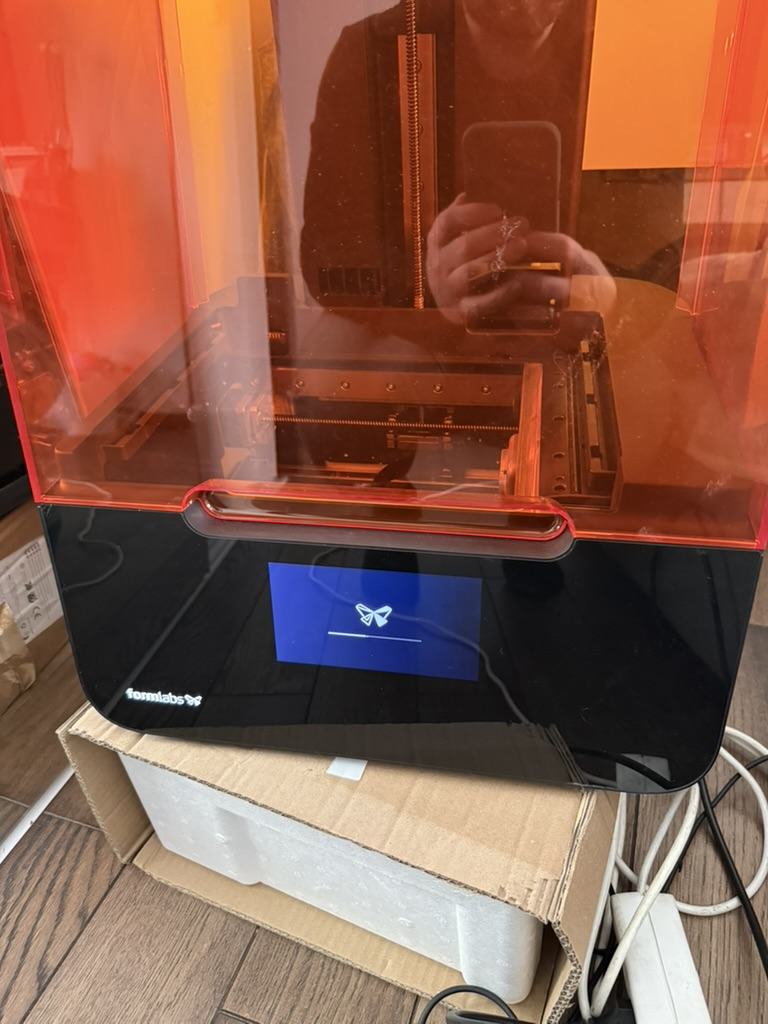
Take the clip off, put the printer back together, plug it in and switch it on. It should now start from the other copy of the system and come up normally.
Optional: enable SSH access
If you want root access to the printer, for example to look at its logs, you can add your SSH key in the same session. There is no root password on the printer, so a key is the only way in. Stock firmware also blocks port 22 in its firewall unless a particular settings file exists, so a key alone is not enough.
The ssh command in the script handles both. It stores your public key in the empty space at 0x100000 and adds a few U-Boot commands to the environment. On every boot, U-Boot copies the key into /home/root/.ssh/authorized_keys on the copy it is about to start, and creates an empty file called persistent_enable_sshd in /data/settings. That file is Formlabs' own switch that tells the firewall to let SSH through. Nothing on the system partitions is changed by hand.
The easy way: the owner portal at printer.wemakerobots.com takes your read1.bin and your public key and builds the patched image for you, with the boot partition flip if you need it. You then write it with the same flashrom commands.
By hand, with the script above:
ssh-keygen -t ed25519 -f ~/.ssh/form3 -N ''

# SSH only, same boot partition as before:
python3 form3_qspi.py ssh read1.bin patched.bin ~/.ssh/form3.pub

# or flip the boot partition and add the key in one go:
python3 form3_qspi.py flip read1.bin flipped.bin
python3 form3_qspi.py ssh flipped.bin patched.bin ~/.ssh/form3.pub

# write the environment and the key, then check
flashrom $P -l form3.layout -i env -i key -w patched.bin
flashrom $P -r check.bin && cmp check.bin patched.bin && echo "written correctly"
After the printer boots, find its IP address on the touchscreen (or in your router) and log in:
ssh -i ~/.ssh/form3 root@<printer-ip>To remove it again, write read1.bin back as shown in step 7.
After the printer boots
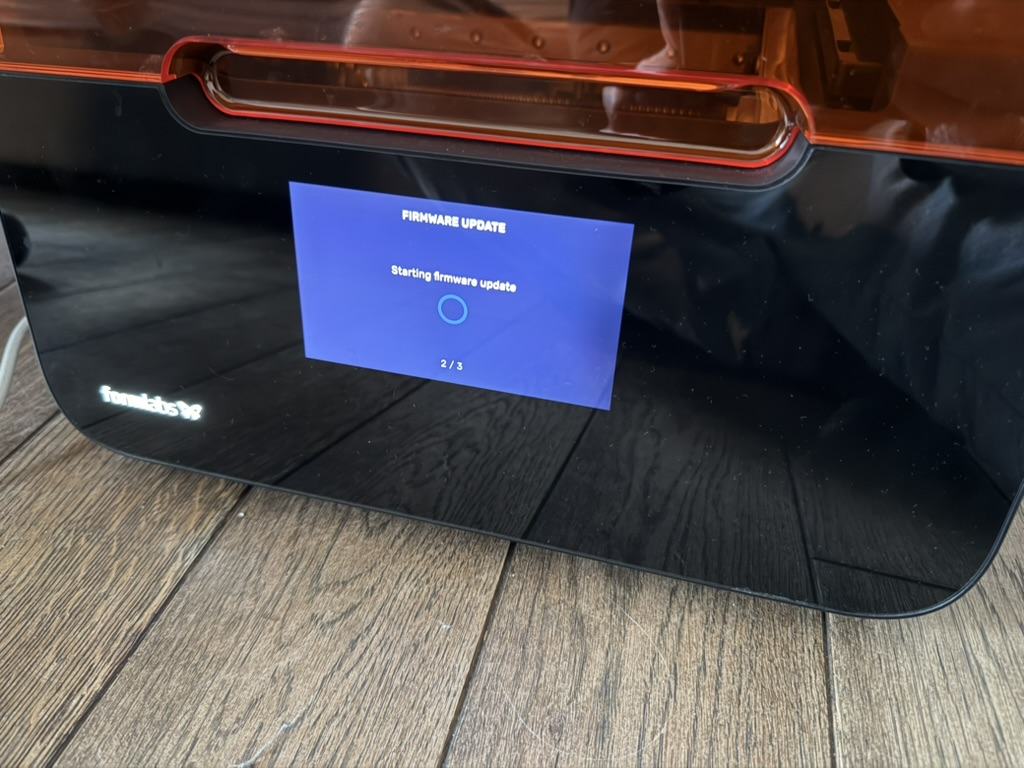
Run a normal firmware update from the printer or from PreForm. The update is written into the copy that is not running, which is the broken one, so this replaces it with a clean version. The printer then switches over to it by itself. After that both copies are healthy again.
If something goes wrong
- "No EEPROM/flash device found". Every time this happened to me it was the clip not sitting on all eight legs, or a loose wire. Take the clip off, check the red wire is on the dot, and press it on again squarely. On a Pi, check that CS goes to header pin 24 and that WP and HOLD are on 3.3V.
- The two reads differ. Same cause. Do not write anything until two reads in a row match.
- The script says the CRC does not match. The read is bad, or the file is not a Form 3 boot flash. Do not write.
- flashrom names more than one possible chip. That is expected, which is why the commands pass
-c W25Q32FV. - The printer still does not boot after the flip. Then the other copy is damaged too, or the problem is not the eMMC. Write
read1.binback, and have a look at Part 2 for what I did next.
Need a hand?
If you get stuck, or you would rather not open the printer yourself, send me a message with the contact form at the bottom of this page. I am happy to help you work through it, or to fix the printer for you.
Contact me
Questions, ideas, or spotted a bug? Send me a note.